> ## Documentation Index
> Fetch the complete documentation index at: https://docs.antsdata.com/llms.txt
> Use this file to discover all available pages before exploring further.
# Windows
> Learn how to integrate AntsData's proxy on Windows.
The process of setting up a proxy on Windows may vary depending on the version of the Windows operating system. The following instructions have been tested on **Windows 11**.
press **Windows** + **I** to open Windows Settings.
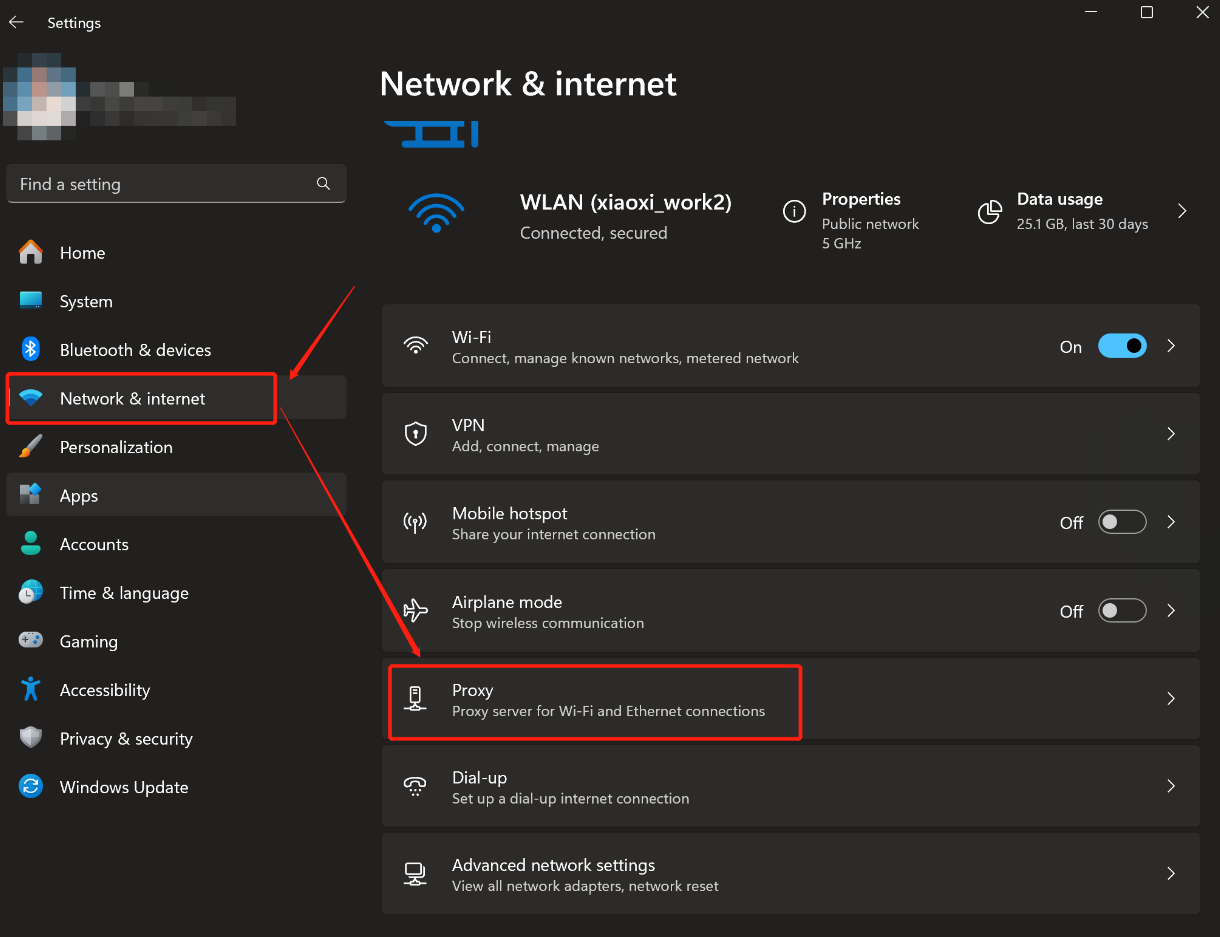
Find the **Proxy** settings under the **Network & internet** section.
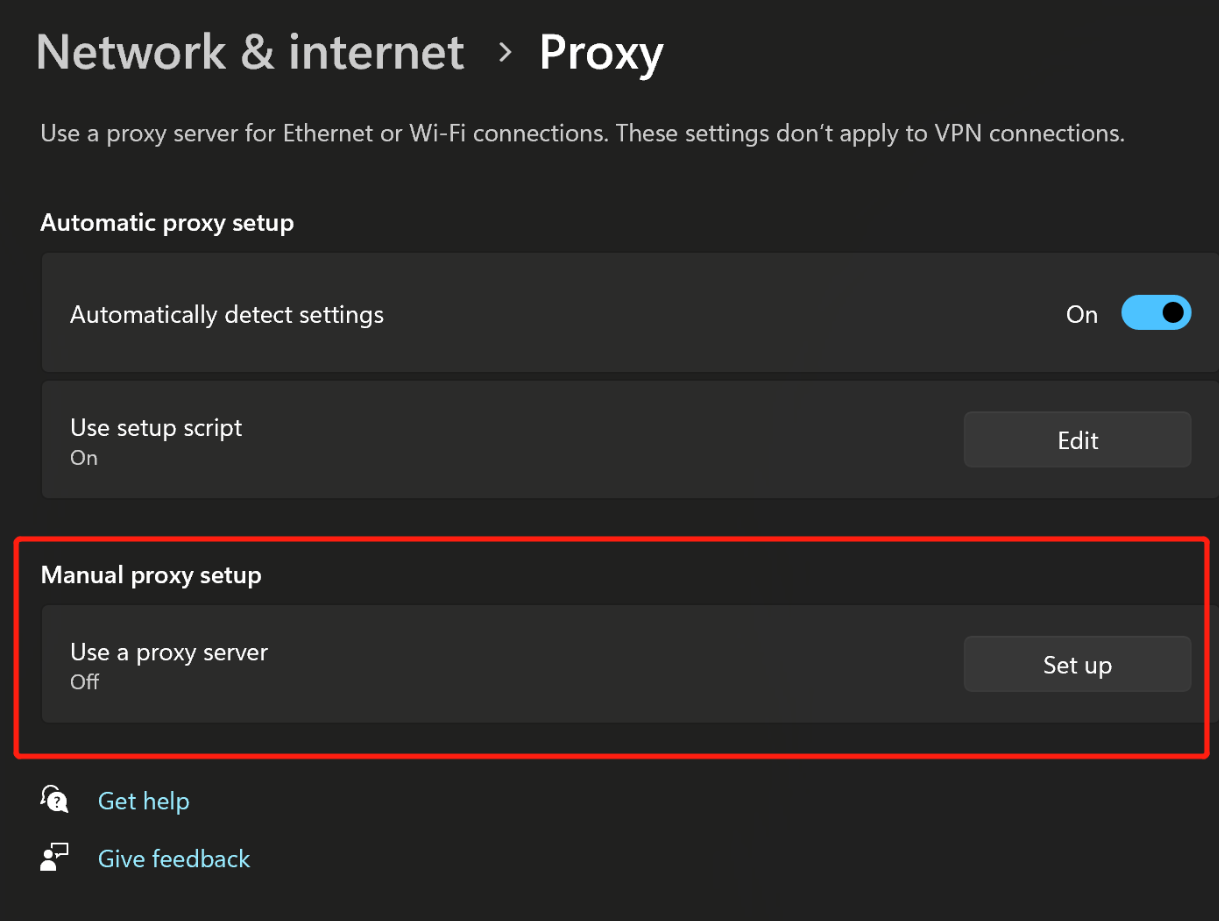
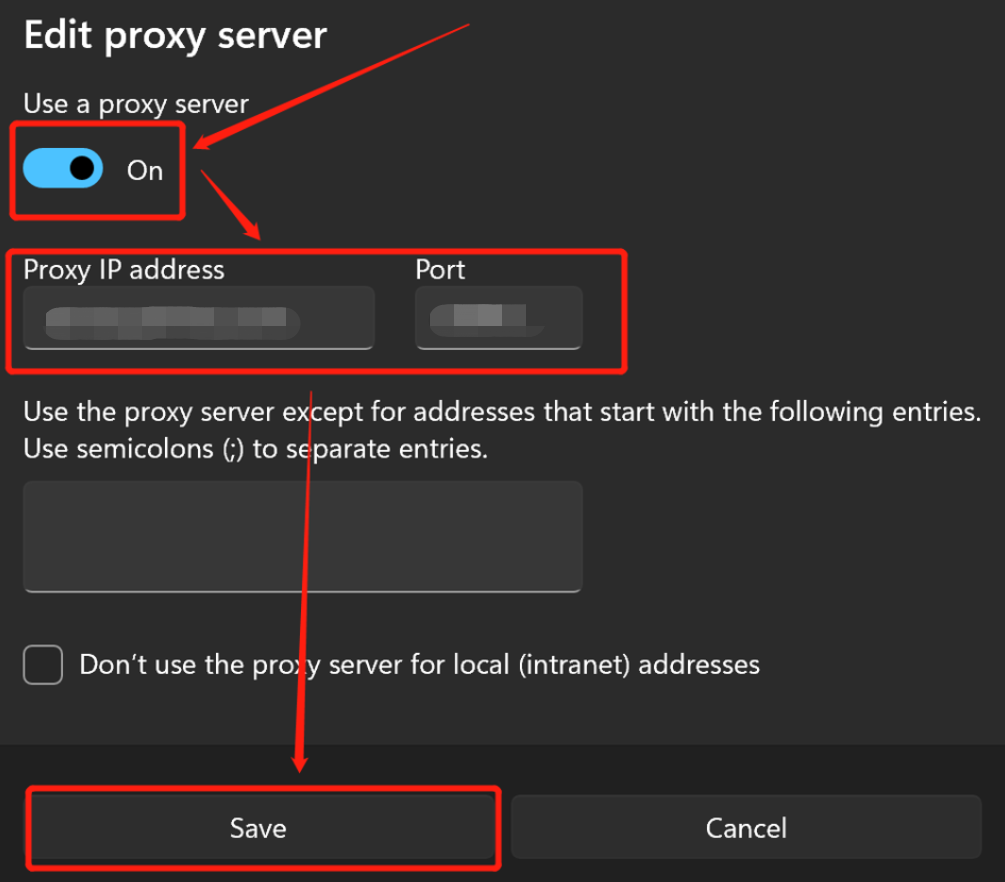
 Scroll down to the **Manual proxy setup** part and click **Set up**.
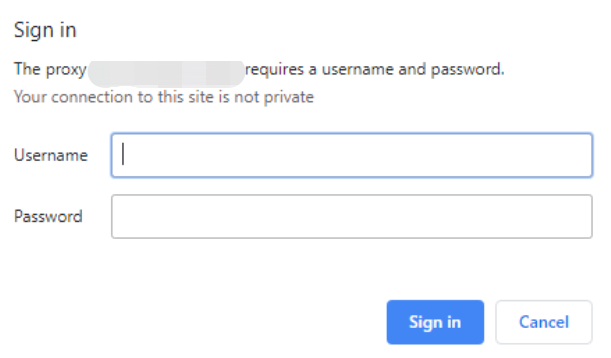
 If your work environment's IP is not whitelisted, you will be prompted to enter your username and password when attempting to open a browser or website. Enter your username and password, then click **Sign in** to complete authentication.
 Now you can work with proxy, such as browsing websites, downloading files, and more.